Connect to an Iranian IP on Mac abroad
With the INCY app and the Abarip user panel, connecting takes just a few taps, with no need to copy a link.

Step 1 — Open the panel and tap Quick connect
Sign in to your Abarip user panel. Under “My services”, on your active service card, tap the “Quick connect” button.
Don't have a service yet? You can start with a free test or buy a subscription.
Step 2 — Choose your device
The panel detects your device automatically and marks it “Your device”. If you are on another device, choose the right option here.
Which device are you connecting on?
Step 3 — Install INCY
If INCY is not installed on your Mac, tap “Get it on the App Store” and install the app.
If you have already installed INCY, skip this step.
Step 4 — Add the subscription with one tap
Tap “Add to INCY”. INCY opens; confirm in the window that appears and your subscription is added automatically.
INCY did not open? Install or update the app once, then tap “Add to INCY” again.
Step 5 — Connect to the Iranian IP
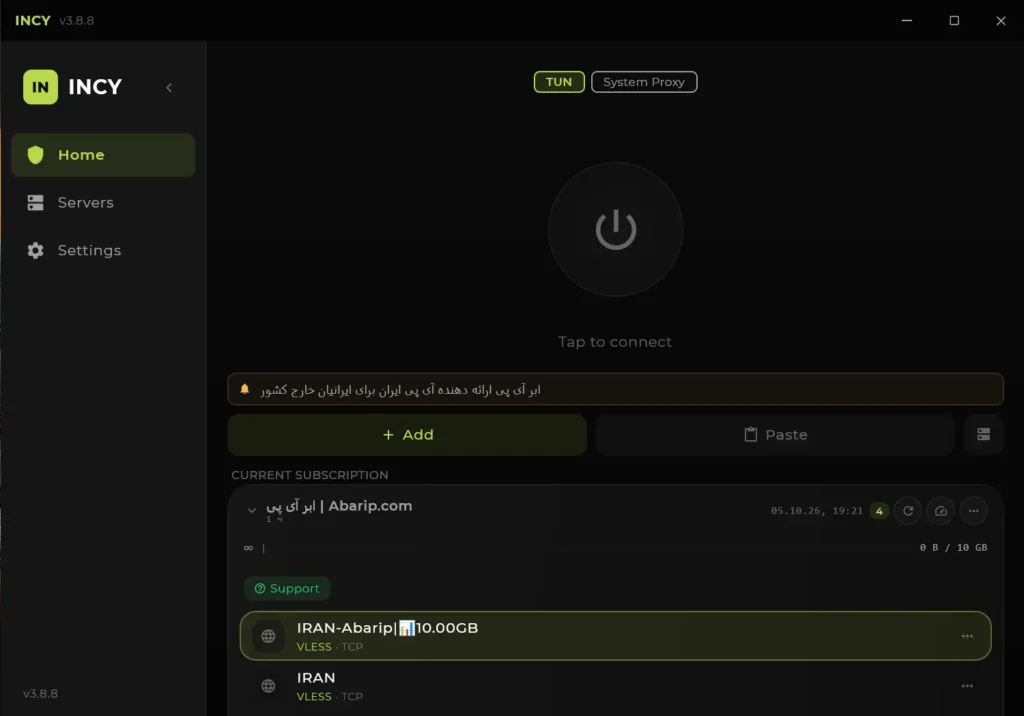
In INCY, select the Abarip subscription and tap Connect. Once connected, your internet IP changes to an Iranian IP.
Other methods
Want to enter the subscription yourself? In the panel tap “Copy subscription link” and paste the link into the Subscription section of the INCY app.
If it does not connect
Close INCY once and reopen it, or update the subscription inside the app. If the problem remains, message support from the panel.
Connection successful
You can now use online services and Iranian apps and websites that need an Iranian IP from abroad.